
Danh sách 20 công cụ giám sát hiệu năng sau đây sẽ giúp quản
trị hệ thống dễ dàng hơn trong việc quản lý và tìm ra nguyên nhân xử lý
sự cố hệ thống Linux/Unix. Giám sát và gỡ rối (debug) các vấn đề về hiệu
năng hệ thống Linux là một công việc hằng ngày của các quản trị hệ
thống/mạng.
1. Top – Công cụ giám sát tiến trình Linux
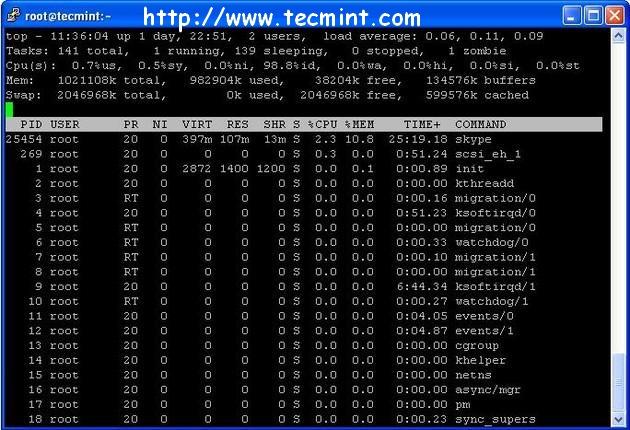
Linux Top là một chương trình giám sát hiệu năng hay được sử dụng bởi rất nhiều quản trị hệ thống và nó có sẵn trong rất nhiều hệ điều hành Linux/Unix. Câu lệnh Top được sử dụng để hiển thị tất cả các tiến trình đang chạy và hoạt động thời gian thực dưới dạng danh sách và cập nhật thường xuyên. Thông tin hiển thị CPU usage, Memory usage, Swap Memory, Cache Size, Buffer Size, Process PID, User, Command… Câu lệnh Top giúp cho quản trị hệ thống giám sát và đưa ra hành động phù hợp.
 2. VmStat – Công cụ giám sát và thống kê bộ nhớ ảo
Câu lệnh VmStat được sử dụng để hiển thị số liệu thống kê về virtual memory, kernerl threads, disks, system processes, I/O blocks, interrupts, CPU activity … Mặc định lệnh vmstat không có sẵn trên hệ thống Linux, người dùng cần cài đặt thêm gói sysstat
Lệnh Lsof được sử dụng để hiển thị danh sách tất cả các tệp tin và tiến trình đang mở. Những tệp tin đang mở bao gồm disk files, network sockets, pipes, devices và processes. Một trong những công dụng chính của lệnh này là khi một ổ đĩa bị lỗi và hiển thị thông báo lỗi có tệp tin đang chạy hoặc đang được mở. Nhờ đó quản trị viên có thể dễ dàng xác định tệp nào đang dùng. Định dạng phổ biến nhất của lệnh lsof là:
Tcpdump là một trong những công cụ bắt gói tin hoặc phân tích gói tin mạng được gửi và truyền tải trên một giao diện mạng. Nó có khả năng lọc các gói tin TCP/IP và cung cấp tùy chọn để lưu gói tin đã bắt thành một tệp tin để dùng cho phân tích sau này. Tcpdump có sẵn trên hầu hết các bản phân phối Linux.
Netstat là công cụ dòng lệnh giám sát số liệu thống kê các gói tin mạng vào/ra. Đây là công cụ giúp cho quản trị hệ thống giám sát hiệu năng mạng và khắc phục sự cố mạng.
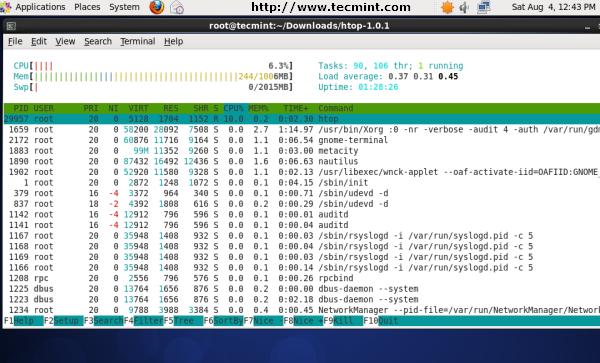
Htop là công cụ giám sát tiến trình Linux theo thời gian thực. Nó khá giống với lệnh TOP nhưng nhiều tính năng hơn như giao diện quản lý thân thiện, các phím tắt, trình bày các tiến trình theo hàng ngang hoặc hàng dọc. Htop là một công cụ bên thứ ba và không có sẵn trong hệ thống Linux, để sử dụng quản trị cần sử dụng công cụ quản lý gói YUM.
 7. Iotop – Công cụ giám sát I/O ổ cứng
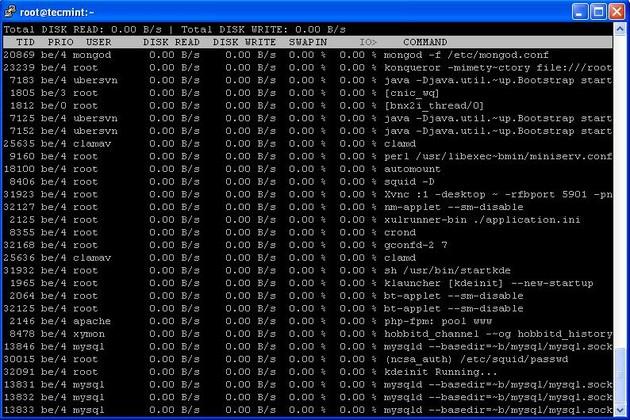
Iotop cũng rất giống với lệnh TOP và Htop nhưng tính năng chính của nó là giám sát và hiển thị tiến trình và Disk I/O theo thời gian thực. Công cụ này hữu ích trong việc tìm ra chính xác tiến trình nào đang thao tác đọc/ghi đĩa.
 8. Iostat – Công cụ thống kê I/O
IoStat là công cụ đơn giản để thu thập và hiển thị số liệu input/oput của thiết bị lưu trữ. Công cụ này thường được sử dụng để lần vết các vấn đề liên quan tới hiệu năng lưu trữ bao gồm thiết bị, ổ đĩa cục bộ, ổ đĩa từ xa như NFS.
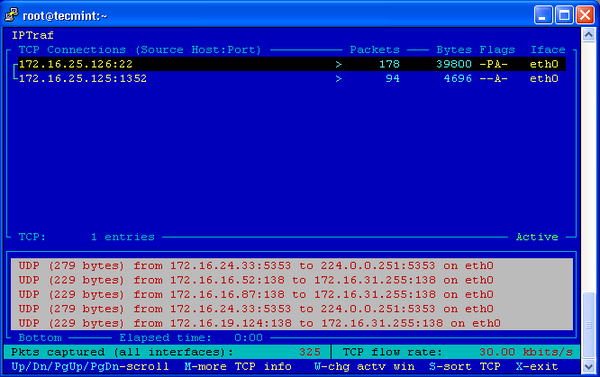
IPTraf là một công cụ mã nguồn mở giám sát mạng (IP LAN) thời gian thực dành cho Linux. Nó thu thập rất nhiều thông tin như lưu lượng IP bao gồm thông tin về TCP flag, chi tiết ICMP, lưu lượng TCP/UDP không gửi được, gói tin kết nối TCP… Nó cũng thu thập các thông tin chung về giao diện mạng với các thông số TCP, UDP, IP, ICMP, non-IP, IP checksum errors, …
 10. Psacct/Acct – Công cụ giám sát hoạt động người dùng
Công cụ psacct/acct rất hữu ích trong việc giám sát hoạt động mỗi người dùng trên hệ thống. Cả hai đều chạy dưới nền và giám sát tổng quan hành vi cũng như tài nguyên đang được sử dụng bởi người dùng. Quản trị có thể biết được người dùng đang làm gì, thực hiện câu lệnh nào, sử dụng bao nhiêu tài nguyên và thời gian hoạt động …
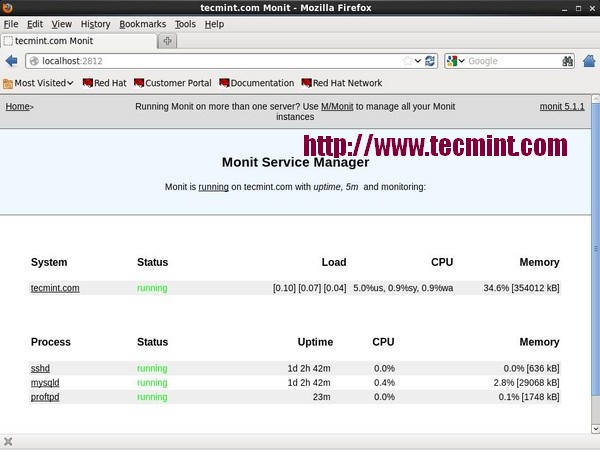
11. Monit – Công cụ giám sát dịch vụ và tiến trình Linux
Monit là một công cụ mã nguồn mở giao diện web dùng trong tự động giám sát và quản lý các tiến trình hệ thống, các chương trình, tệp tin, thư mục, phân quyền, kiểm tra lỗi và tệp tin hệ thống. Nó giám sát các dịch vụ như Apache, MySQL, Mail, FTP, ProFTP, Nginx, SSH … Trạng thái hệ thống có thể được xem tại giao diện dòng lệnh hoặc giao diện web.
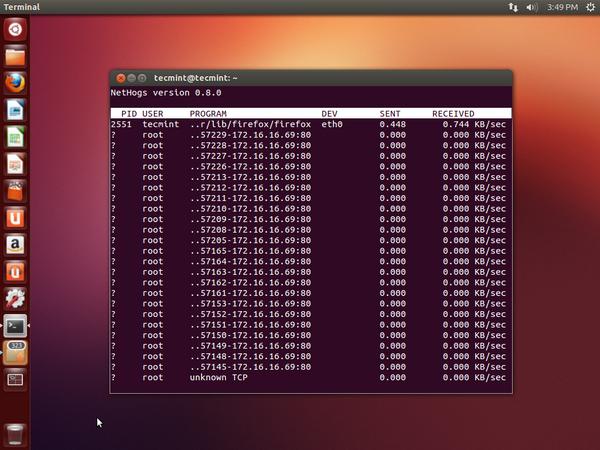
 12. NetHogs – Công cụ giám sát tiến trình băng thông mạng
NetHogs là một phần mềm mã nguồn mở quản lý hoạt động các tiến trình mạng trong hệ thống. Nó cũng giám sát băng thông lưu lượng mạng đang được sử dụng trong thời gian thực của mỗi chương trình hoặc ứng dụng.
 13. iftop – Công cụ giám sát băng thông mạng
iftop là một phần mềm mã nguồn mở hiển thị danh sách các kết nối cùng băng thông sử dụng trên một giao diện mạng.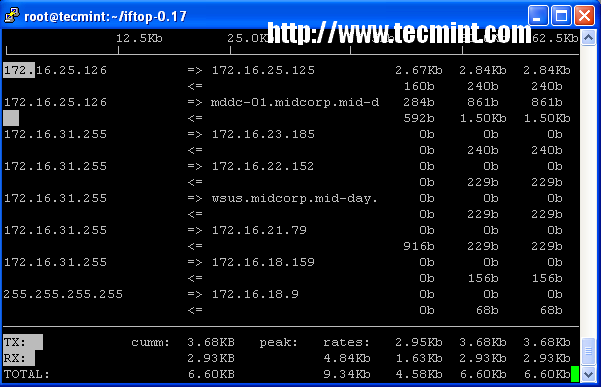
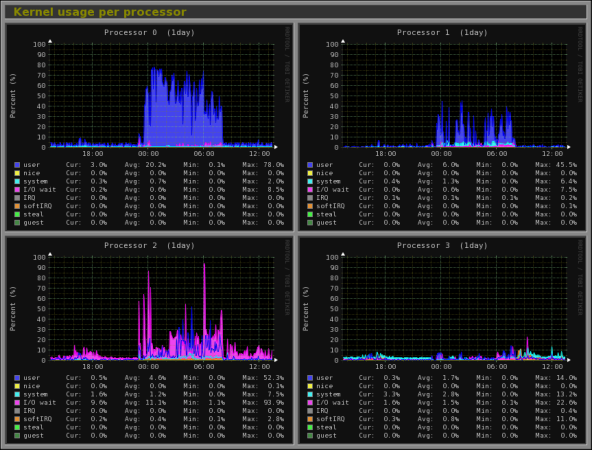
14. Monitorix – Công cụ giám sát mạng và hệ thống
Monitorix là một công cụ miễn phí được thiết kế để giám sát hệ thống và tài nguyên mạng trên máy chủ Linux/Unix. Nó tích hợp HTTP web server dùng để thu thập thông tin về hệ thống và mạng rồi hiển thị dưới dạng biểu đồ. Monitorix giám sát system load average/usage, memory allocation, disk driver health, system services, network ports, mail statistics (Sendmail, Postfix, Dovecot, ….), MySQL statistics … Nó giúp phát hiện các vấn đề sự cố bất thường.
 15. Arpwatch – Công cụ giám sát hoạt động Ethernet
Arpwatch là chương trình được thiết kế nhằm giám sát phân giải địa chỉ (những thay đổi về địa chỉ MAC và IP) của một mạng Ethernet trên hệ thống Linux. Nó liên tục theo dõi và sinh ra log về những địa chỉ IP và Mac thay đổi cùng mốc thời gian. Arpwatch cũng cung cấp tính năng gửi và nhận email để cảnh báo đến người quản trị. Nó rất hữu ích trong việc phát hiện có tấn công ARP spoofing trong mạng.
16. Suricata – Công cụ bảo mật mạng
Suricata là phần mềm mã nguồn mở về bảo mật mạng, hệ thống giám sát phát hiện xâm nhập và ngăn chặn cho hệ điều hành Linux, FreeBSD và Windows. Nó được thiết kế và phát hành bởi tổ chức phi lợi nhuận OISF (Open Information Security Foundation).
17. VnStat PHP – Công cụ giám sát băng thông mạng
VnStat PHP là một ứng dụng web frontend dành cho công cụ mạng phổ biến “vnstat”. VnStat PHP giám sát lưu lượng mạng bằng giao diện thân thiện và hiển thị lưu lượng mạng ra/vào sử dụng với báo cáo hàng giờ, hàng ngày, hàng tháng và tổng hợp.
18. Nagios – Công cụ giám sát mạng/máy chủ
Nagios là công cụ mã nguồn mở hàng đầu về hệ thống giám sát cho phép quản trị xác định và giải quyết các vấn đề liên quan trước khi ảnh hưởng nghiêm trọng đến các tiến trình. Với hệ thống Nagios, quản trị có thể giám sát từ xa các hệ điều hành Linux, Windows, thiết bị chuyển mạch, thiết bị định tuyến và máy in chỉ trong một cửa sổ. Nó đưa ra các cảnh báo và xác định cấu hình sai trong mạng/máy chủ giúp quản trị viên có thể xử lý trước khi sự cố xảy ra.
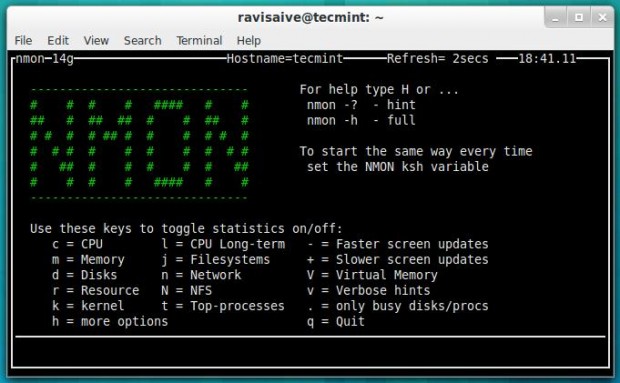
19. Nmon – Công cụ giám sát hiệu năng
Nmon là công cụ giám sát tài nguyên như CPU, Memory, Disk Usage, Network, Top processes, NFS, Kernel … Công cụ này có hai chế độ là Online Mode và Capture Mode. Chế độ Online Mode sử dụng trong giám sát thời gian thực và Capture Mode sử dụng trong lưu trữ kết quả dưới dạng CSV dành cho xử lý sau này.
 20. Collectl – Công cụ giám sát hiệu năng “nhiều trong một”
Collectl là một công cụ mạnh mẽ khác được dùng để thu thập thông tin về tài nguyên hệ thống Linux như CPU usage, memory, network, inodes, processes, nfs, tcp, sockets …

1. Top – Công cụ giám sát tiến trình Linux
Linux Top là một chương trình giám sát hiệu năng hay được sử dụng bởi rất nhiều quản trị hệ thống và nó có sẵn trong rất nhiều hệ điều hành Linux/Unix. Câu lệnh Top được sử dụng để hiển thị tất cả các tiến trình đang chạy và hoạt động thời gian thực dưới dạng danh sách và cập nhật thường xuyên. Thông tin hiển thị CPU usage, Memory usage, Swap Memory, Cache Size, Buffer Size, Process PID, User, Command… Câu lệnh Top giúp cho quản trị hệ thống giám sát và đưa ra hành động phù hợp.
# top
Câu lệnh VmStat được sử dụng để hiển thị số liệu thống kê về virtual memory, kernerl threads, disks, system processes, I/O blocks, interrupts, CPU activity … Mặc định lệnh vmstat không có sẵn trên hệ thống Linux, người dùng cần cài đặt thêm gói sysstat
# vmstat

procs -----------memory---------- ---swap-- -----io---- --system-- -----cpu-----
 r  b   swpd   free  inact active   si   so    bi    bo   in   cs us sy id wa st
 1  0      0 810420  97380  70628    0    0   115     4   89   79  1  6 90  3  0
3. Lsof – Danh sách các tệp tin mở
Lệnh Lsof được sử dụng để hiển thị danh sách tất cả các tệp tin và tiến trình đang mở. Những tệp tin đang mở bao gồm disk files, network sockets, pipes, devices và processes. Một trong những công dụng chính của lệnh này là khi một ổ đĩa bị lỗi và hiển thị thông báo lỗi có tệp tin đang chạy hoặc đang được mở. Nhờ đó quản trị viên có thể dễ dàng xác định tệp nào đang dùng. Định dạng phổ biến nhất của lệnh lsof là:
# lsof

COMMAND     PID      USER   FD      TYPE     DEVICE     SIZE       NODE NAME
init          1      root  cwd       DIR      104,2     4096          2 /
init          1      root  rtd       DIR      104,2     4096          2 /
init          1      root  txt       REG      104,2    38652   17710339 /sbin/init
init          1      root  mem       REG      104,2   129900     196453 /lib/ld-2.5.so
init          1      root  mem       REG      104,2  1693812     196454 /lib/libc-2.5.so
init          1      root  mem       REG      104,2    20668     196479 /lib/libdl-2.5.so
init          1      root  mem       REG      104,2   245376     196419 /lib/libsepol.so.1
init          1      root  mem       REG      104,2    93508     196431 /lib/libselinux.so.1
init          1      root   10u     FIFO       0,17                 953 /dev/initctl
4. Tcpdump – Công cụ giám sát và phân tích gói tin mạng
Tcpdump là một trong những công cụ bắt gói tin hoặc phân tích gói tin mạng được gửi và truyền tải trên một giao diện mạng. Nó có khả năng lọc các gói tin TCP/IP và cung cấp tùy chọn để lưu gói tin đã bắt thành một tệp tin để dùng cho phân tích sau này. Tcpdump có sẵn trên hầu hết các bản phân phối Linux.
# tcpdump -i eth0

tcpdump: verbose output suppressed, use -v or -vv for full protocol decode
listening on eth0, link-type EN10MB (Ethernet), capture size 96 bytes
22:08:59.617628 IP tecmint.com.ssh > 115.113.134.3.static-mumbai.vsnl.net.in.28472: P 2532133365:2532133481(116) ack 3561562349 win 9648
22:09:07.653466 IP tecmint.com.ssh > 115.113.134.3.static-mumbai.vsnl.net.in.28472: P 116:232(116) ack 1 win 9648
22:08:59.617916 IP 115.113.134.3.static-mumbai.vsnl.net.in.28472 > tecmint.com.ssh: . ack 116 win 64347
5. Netstat – Công cụ giám sát và thống kê mạng
Netstat là công cụ dòng lệnh giám sát số liệu thống kê các gói tin mạng vào/ra. Đây là công cụ giúp cho quản trị hệ thống giám sát hiệu năng mạng và khắc phục sự cố mạng.
# netstat -a | more

Active Internet connections (servers and established)
Proto Recv-Q Send-Q Local Address               Foreign Address             State
tcp        0      0 *:mysql                     *:*                         LISTEN
tcp        0      0 *:sunrpc                    *:*                         LISTEN
tcp        0      0 *:realm-rusd                *:*                         LISTEN
tcp        0      0 *:ftp                       *:*                         LISTEN
tcp        0      0 localhost.localdomain:ipp   *:*                         LISTEN
tcp        0      0 localhost.localdomain:smtp  *:*                         LISTEN
tcp        0      0 localhost.localdomain:smtp  localhost.localdomain:42709 TIME_WAIT
tcp        0      0 localhost.localdomain:smtp  localhost.localdomain:42710 TIME_WAIT
tcp        0      0 *:http                      *:*                         LISTEN
tcp        0      0 *:ssh                       *:*                         LISTEN
tcp        0      0 *:https                     *:*                         LISTEN
6. Htop – Công cụ giám sát tiến trình
Htop là công cụ giám sát tiến trình Linux theo thời gian thực. Nó khá giống với lệnh TOP nhưng nhiều tính năng hơn như giao diện quản lý thân thiện, các phím tắt, trình bày các tiến trình theo hàng ngang hoặc hàng dọc. Htop là một công cụ bên thứ ba và không có sẵn trong hệ thống Linux, để sử dụng quản trị cần sử dụng công cụ quản lý gói YUM.
# htop
Iotop cũng rất giống với lệnh TOP và Htop nhưng tính năng chính của nó là giám sát và hiển thị tiến trình và Disk I/O theo thời gian thực. Công cụ này hữu ích trong việc tìm ra chính xác tiến trình nào đang thao tác đọc/ghi đĩa.
# iotop
IoStat là công cụ đơn giản để thu thập và hiển thị số liệu input/oput của thiết bị lưu trữ. Công cụ này thường được sử dụng để lần vết các vấn đề liên quan tới hiệu năng lưu trữ bao gồm thiết bị, ổ đĩa cục bộ, ổ đĩa từ xa như NFS.
# iostat

Linux 2.6.18-238.9.1.el5 (tecmint.com)         09/13/2012

avg-cpu:  %user   %nice %system %iowait  %steal   %idle
           2.60    3.65    1.04    4.29    0.00   88.42

Device:            tps   Blk_read/s   Blk_wrtn/s   Blk_read   Blk_wrtn
cciss/c0d0       17.79       545.80       256.52  855159769  401914750
cciss/c0d0p1      0.00         0.00         0.00       5459       3518
cciss/c0d0p2     16.45       533.97       245.18  836631746  384153384
cciss/c0d0p3      0.63         5.58         3.97    8737650    6215544
cciss/c0d0p4      0.00         0.00         0.00          8          0
cciss/c0d0p5      0.63         3.79         5.03    5936778    7882528
cciss/c0d0p6      0.08         2.46         2.34    3847771    3659776
9. IPTraf – Công cụ giám sát mạng thời gian thựcIPTraf là một công cụ mã nguồn mở giám sát mạng (IP LAN) thời gian thực dành cho Linux. Nó thu thập rất nhiều thông tin như lưu lượng IP bao gồm thông tin về TCP flag, chi tiết ICMP, lưu lượng TCP/UDP không gửi được, gói tin kết nối TCP… Nó cũng thu thập các thông tin chung về giao diện mạng với các thông số TCP, UDP, IP, ICMP, non-IP, IP checksum errors, …
Công cụ psacct/acct rất hữu ích trong việc giám sát hoạt động mỗi người dùng trên hệ thống. Cả hai đều chạy dưới nền và giám sát tổng quan hành vi cũng như tài nguyên đang được sử dụng bởi người dùng. Quản trị có thể biết được người dùng đang làm gì, thực hiện câu lệnh nào, sử dụng bao nhiêu tài nguyên và thời gian hoạt động …
11. Monit – Công cụ giám sát dịch vụ và tiến trình Linux
Monit là một công cụ mã nguồn mở giao diện web dùng trong tự động giám sát và quản lý các tiến trình hệ thống, các chương trình, tệp tin, thư mục, phân quyền, kiểm tra lỗi và tệp tin hệ thống. Nó giám sát các dịch vụ như Apache, MySQL, Mail, FTP, ProFTP, Nginx, SSH … Trạng thái hệ thống có thể được xem tại giao diện dòng lệnh hoặc giao diện web.
NetHogs là một phần mềm mã nguồn mở quản lý hoạt động các tiến trình mạng trong hệ thống. Nó cũng giám sát băng thông lưu lượng mạng đang được sử dụng trong thời gian thực của mỗi chương trình hoặc ứng dụng.
iftop là một phần mềm mã nguồn mở hiển thị danh sách các kết nối cùng băng thông sử dụng trên một giao diện mạng.
14. Monitorix – Công cụ giám sát mạng và hệ thống
Monitorix là một công cụ miễn phí được thiết kế để giám sát hệ thống và tài nguyên mạng trên máy chủ Linux/Unix. Nó tích hợp HTTP web server dùng để thu thập thông tin về hệ thống và mạng rồi hiển thị dưới dạng biểu đồ. Monitorix giám sát system load average/usage, memory allocation, disk driver health, system services, network ports, mail statistics (Sendmail, Postfix, Dovecot, ….), MySQL statistics … Nó giúp phát hiện các vấn đề sự cố bất thường.
Arpwatch là chương trình được thiết kế nhằm giám sát phân giải địa chỉ (những thay đổi về địa chỉ MAC và IP) của một mạng Ethernet trên hệ thống Linux. Nó liên tục theo dõi và sinh ra log về những địa chỉ IP và Mac thay đổi cùng mốc thời gian. Arpwatch cũng cung cấp tính năng gửi và nhận email để cảnh báo đến người quản trị. Nó rất hữu ích trong việc phát hiện có tấn công ARP spoofing trong mạng.
16. Suricata – Công cụ bảo mật mạng
Suricata là phần mềm mã nguồn mở về bảo mật mạng, hệ thống giám sát phát hiện xâm nhập và ngăn chặn cho hệ điều hành Linux, FreeBSD và Windows. Nó được thiết kế và phát hành bởi tổ chức phi lợi nhuận OISF (Open Information Security Foundation).
17. VnStat PHP – Công cụ giám sát băng thông mạng
VnStat PHP là một ứng dụng web frontend dành cho công cụ mạng phổ biến “vnstat”. VnStat PHP giám sát lưu lượng mạng bằng giao diện thân thiện và hiển thị lưu lượng mạng ra/vào sử dụng với báo cáo hàng giờ, hàng ngày, hàng tháng và tổng hợp.
18. Nagios – Công cụ giám sát mạng/máy chủ
Nagios là công cụ mã nguồn mở hàng đầu về hệ thống giám sát cho phép quản trị xác định và giải quyết các vấn đề liên quan trước khi ảnh hưởng nghiêm trọng đến các tiến trình. Với hệ thống Nagios, quản trị có thể giám sát từ xa các hệ điều hành Linux, Windows, thiết bị chuyển mạch, thiết bị định tuyến và máy in chỉ trong một cửa sổ. Nó đưa ra các cảnh báo và xác định cấu hình sai trong mạng/máy chủ giúp quản trị viên có thể xử lý trước khi sự cố xảy ra.
19. Nmon – Công cụ giám sát hiệu năng
Nmon là công cụ giám sát tài nguyên như CPU, Memory, Disk Usage, Network, Top processes, NFS, Kernel … Công cụ này có hai chế độ là Online Mode và Capture Mode. Chế độ Online Mode sử dụng trong giám sát thời gian thực và Capture Mode sử dụng trong lưu trữ kết quả dưới dạng CSV dành cho xử lý sau này.
Collectl là một công cụ mạnh mẽ khác được dùng để thu thập thông tin về tài nguyên hệ thống Linux như CPU usage, memory, network, inodes, processes, nfs, tcp, sockets …

Nguồn tecmint


